In this guide you will learn how create a new ECL alarm in Leanheat Monitor.
To access alarms click on the "Alarms" tab. Here you can view active alarms, historical alarms and create new alarm rules.
To create a new "ECL" alarm rule click on "Rules" in the upper left side of the screen, click "New" and select "ECL"
Enter the alarm rule name, optional description and click "Next".
Now select the devices you want the rule to be active for. Here you can use filters to help with device selection.
Moving on, define controller inputs for the alarm. Click on the plus icon and select the registers for the alarm. The ECL alarm has to also be set on the device which you can do in the settings tab for each device or use bulk operation to change settings for multiple devices.
In the fourth step enter alarm notification recipients. You can define different recipients for different severities of the alarm. By ticking the "Resolution notification" check box the recipient will also receive a notification when the alarm is resolved.
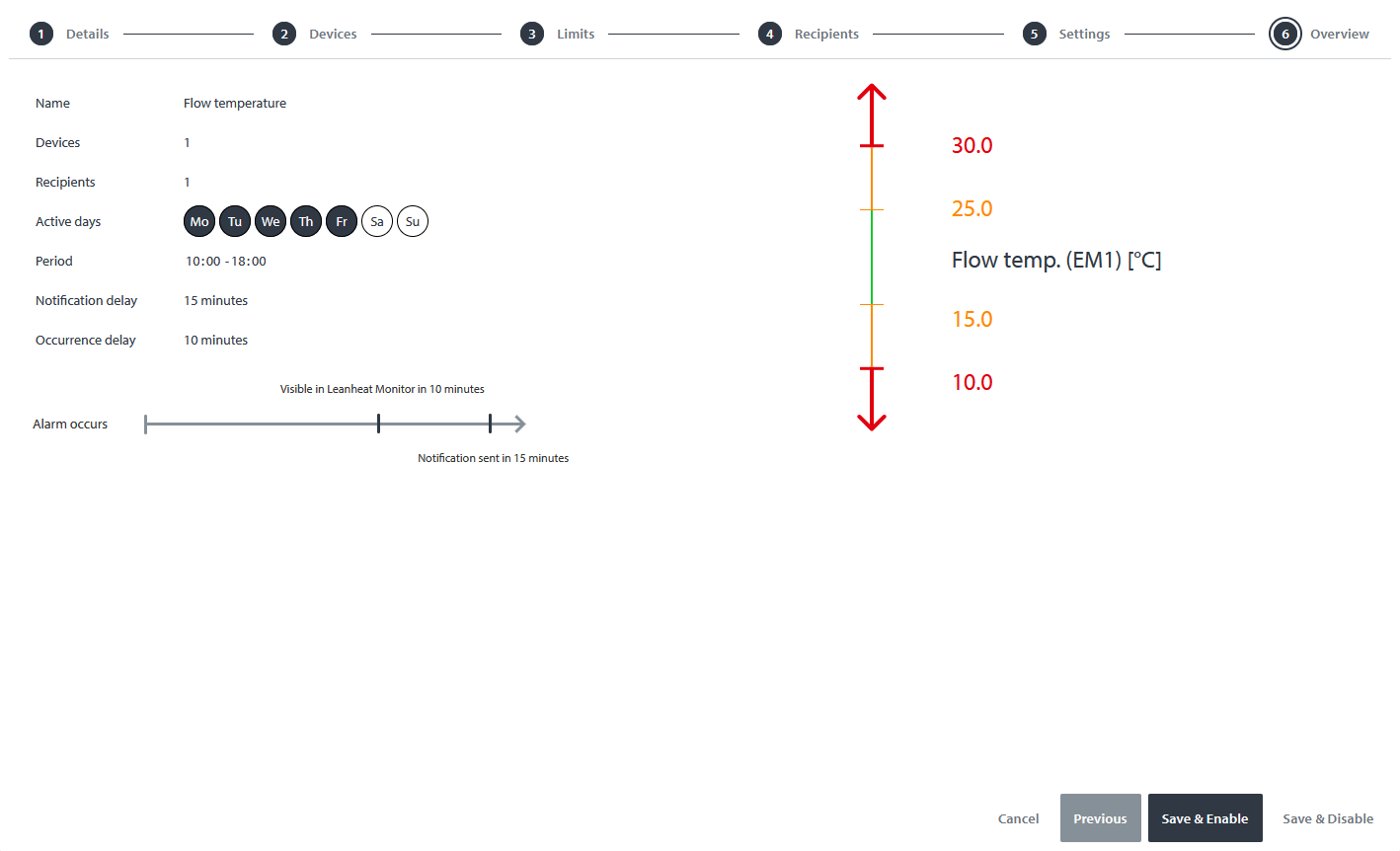
Up next you can define a schedule for the alarm. You can set the alarm to only be active on certain days at certain hours and set delays for alarm occurrence and notification. If the alarm will be resolved before the occurrence delay is over the alarm will not be visible in Leanheat Monitor.
The last step is an overview of the alarm. To finish the alarm creation click on either "Save and enable" or "Save and disable".
If an "ECL alarm" is set on the device but that device is not included in the ECL alarm definition under alarm rules a notification will pop-up in the upper right side of the screen reminding you to create the alarm definition in Leanheat Monitor.
To setup an "ECL alarm" on an ECL navigate to the settings of the device. Each circuit of the application will have it's own "ECL alarm". Here you can setup the alarm same as on the controller itself.
For more details, please check the video below:
Comments
0 comments
Please sign in to leave a comment.